If your WordPress website feels slow, messy, or full of errors, you are not alone. Many website owners reach a point where a fresh start is the best solution. Learning how to reset a WordPress website is an essential skill in 2026.
I am Rahatul Ahsan Rafi, a WordPress developer with over 10 years of experience. I have fixed hundreds of websites for clients worldwide. My website is rahatulahsanrafi.com. In this guide, I will explain both plugin-based and manual resets, step by step, using simple language anyone can follow.
Whether you are a beginner or a developer, this guide will help you safely reset your website while protecting your content, improving speed, and maintaining Google rankings.
What Does Resetting a WordPress Website Mean?
Resetting a WordPress site means returning it to a default, clean state. Think of it like a factory reset on your phone.
Here is what happens when you reset:
- All posts, pages, and comments are deleted
- Plugins and themes are removed
- Media files may be deleted
- Settings return to default
- Your admin account usually stays intact if using a plugin
A reset gives you a clean slate to rebuild. It is like cleaning a whiteboard to start fresh.
Why You Might Need To Reset Your Website
Resetting is not for fun. It permanently deletes content. But in many situations, it is the best solution. Here are common reasons:
1. Fixing Malware or Hacker Attacks
In 2026, WordPress powers over 40% of websites. Hackers use advanced tools and backdoors to exploit sites.
Even if you delete a single infected plugin, hackers can re-enter your site through hidden backdoors. A full reset removes malware completely.
2. Starting a Brand New Business or Project
Sometimes your old website does not fit your new project. For example, if you started a food blog and now want to sell digital software, deleting posts one by one is slow. A full reset gives you a clean canvas.
3. Cleaning Up a Messy Database
Testing multiple plugins, themes, or settings can leave “orphan data” in your database. This slows your website and frustrates visitors. A reset clears unnecessary data, making your site faster.
4. Learning or Experimenting
If you are experimenting with WordPress, you might need a fresh setup to practice safely.
Precautions Before Resetting
Resetting without preparation can be dangerous. Follow these steps:
Take a Full Backup
Backup is your safety net. Never reset without it.
A complete backup should include:
- Core files: WordPress system files
- Themes and plugins: Control your website’s appearance and functionality
- Media uploads: All pictures and videos
- Database: Stores posts, pages, comments, and settings
Recommended backup tools:
Plugin Name
Features
Storage Options
Always verify your backup before starting a reset.
Save Important Content
Download your media files and any custom code. Take screenshots of your theme and plugin settings for reference.
Check Hosting Compatibility
Make sure your host supports modern PHP versions (7.4+ for WordPress 7.0). Old PHP versions can break the reset process.

Method 1: Reset a WordPress Website Using a Plugin
The plugin method is fast, safe, and beginner-friendly.
Recommended Plugin: WP Reset
WP Reset is free, widely used, and trusted. It deletes all content while keeping your admin account intact.
Step-by-Step Guide
Step 1: Install WP Reset
- Go to Dashboard → Plugins → Add New
- Search for “WP Reset”
- Click Install → Activate
Step 2: Create a Snapshot
Snapshots save your database before resetting. They allow you to undo the reset if needed.
- Go to Tools → WP Reset → Snapshot
- Click Create Snapshot
- Name it (e.g., “Before Reset”)
Step 3: Start the Reset
- Scroll down to “Site Reset”
- Type “reset” in the confirmation box
- Click “Reset Site” → Confirm
Your website is now reset. The default theme is activated, all plugins and content are removed, and your admin account remains safe.
Other Plugin Options
- Advanced WordPress Reset: Powerful tool with partial reset options
- Database Reset: Reset selected tables only
Advantages of Plugin Reset
- Very fast
- No coding needed
- Snapshots prevent accidental data loss
- Beginner-friendly
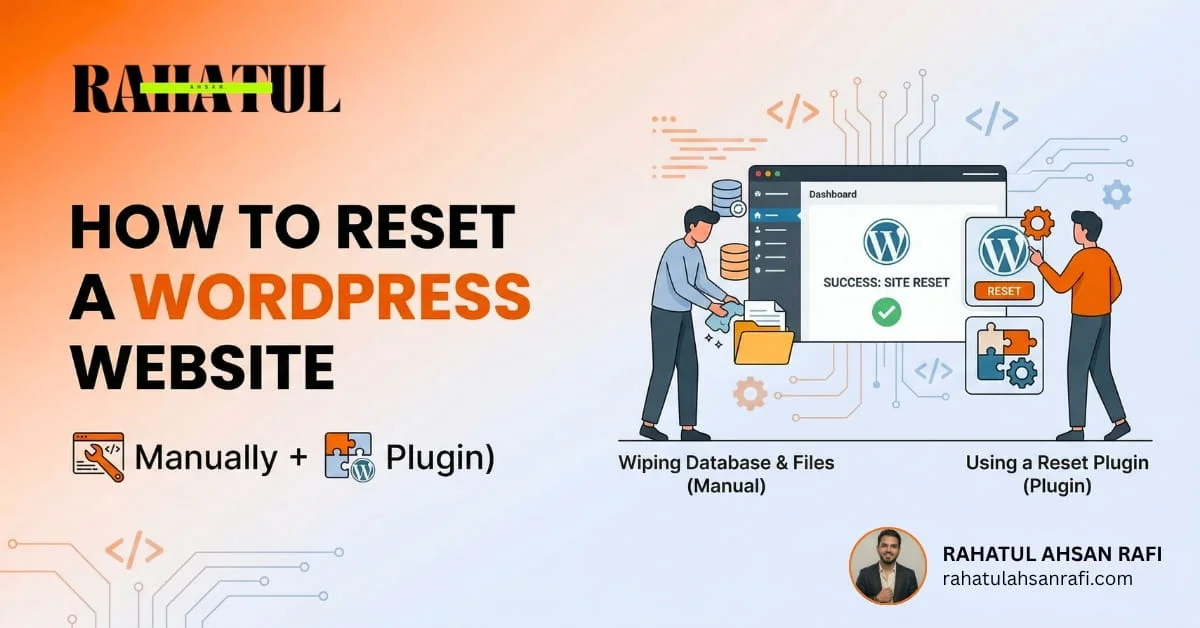
Method 2: Manual WordPress Reset
Manual reset gives full control and is used by experienced developers. It is necessary if:
- Your site is hacked, and you cannot log in
- Plugin reset does not work
- You want full control over every file
Step 1: Backup Your Website
Always start with a full backup (database and files).
Step 2: Delete the Old Database
- Log into your hosting cPanel
- Go to MySQL Databases
- Find your database → Click Delete
Step 3: Create a New Database
- In MySQL Databases → Create New Database
- Add a user → Grant All Privileges
Step 4: Delete File Folders
- Open File Manager or FTP
- Go to public_html → wp-content
- Delete themes, plugins, and uploads
Keep wp-config.php if you want to preserve database settings.
Step 5: Reinstall WordPress
- Download fresh WordPress from wordpress.org
- Upload files via FTP or File Manager
- Access yoursite.com/wp-admin/install.php
- Fill in site title, username, password, and email → Install
Your site is now clean and ready to rebuild.
Manual vs Plugin Reset
Feature
Plugin Reset
Manual Reset
Recommendation: Use plugin reset unless you need advanced control.
Post-Reset Steps
After a reset, your site is empty. Follow these steps to rebuild:
- Install a lightweight, official theme (avoid nulled themes)
- Install essential plugins (keep under 10 for speed)
- Re-upload media if needed
- Set permalinks under Settings → Permalinks → Save Changes
- Install security plugin like Wordfence
- Run speed tests (GTmetrix or PageSpeed Insights)
- Optimize for mobile users
WordPress 7.0 Updates in 2026
WordPress 7.0 has major updates:
- Real-Time Team Collaboration: Multiple users can edit a page simultaneously
- Built-in AI: Abilities API integrates AI models directly
- New DataViews Dashboard: Lists and grids are easier to manage
- Server Requirements: PHP 7.4+, updated MySQL
When resetting a site on WordPress 7.0, pay attention to AI keys, collaboration history, and new database requirements.
Fixing Common Errors After Reset
Even after a reset, issues may occur:
White Screen of Death
- Enable WP_DEBUG in wp-config.php to locate the error
Error Establishing Database Connection
- Verify database name, username, and password in wp-config.php
500 Internal Server Error
- Rename .htaccess → Settings → Permalinks → Save Changes
404 Page Not Found
- Settings → Permalinks → Save Changes
File Permission Issues
Folders: 755, Files: 644
SEO After Reset
A reset may hurt your Google rankings. Fix this by:
- Using your main keyword naturally
- Writing clear, helpful content
- Optimizing images
- Improving site speed
- Building backlinks
- Using AEO, GEO, and AIO strategies
AEO, GEO, and AIO Explained
- AEO (Answer Engine Optimization): Write direct answers to user questions
- GEO (Generative Engine Optimization): Organize content for AI readability (headings, bullets)
- AIO (Artificial Intelligence Optimization): Fast, error-free code for AI tools
Why Hire a Professional WordPress Developer
Resetting is easy, but rebuilding correctly is tricky. I have 10+ years of experience helping businesses worldwide.
Benefits of Hiring Me:
- Fast, safe resets
- Clean, SEO-friendly websites
- Affordable rates
- Expert problem-solving
Visit rahatulahsanrafi.com to hire the best affordable WordPress developer.
FAQs Section
Include People Also Ask questions in your blog with clear answers:
1. Does resetting WordPress delete my admin account?
Plugin resets keep your account safe. Manual resets delete it.
2. Can I undo a WordPress reset?
Only with snapshots or backups. Manual resets without backup cannot be undone.
3. Will my Google rankings drop?
Only if you do not rebuild content quickly. Use AEO and GEO strategies.
4. How long does a reset take?
Plugin: 1–2 minutes. Manual: 10–20 minutes.
5. Can beginners reset their site?
Yes, using plugins like WP Reset.
Final Thoughts
Resetting a WordPress website gives you a fresh start. It improves speed, security, and usability.
Remember:
- Always backup first
- Choose the right reset method
- Rebuild carefully with SEO and user experience in mind
With my guidance, you can safely reset and rebuild your WordPress site. Visit rahatulahsanrafi.com and let’s make your website fast, secure, and ready for 2026.