Hello! If you’re managing a WordPress website, you might have run into a few annoying errors at some point. Whether you’re a beginner or an experienced WordPress user, errors can be frustrating. But don’t worry! As an experienced WordPress developer, I’m Rahatul Ahsan Rafi, will guide you through over 100+ common WordPress errors and how to fix them easily. My goal is to help you troubleshoot and improve your website’s performance—no matter your skill level.
WordPress powers a huge part of the internet, and one of its strengths is its flexibility. However, sometimes things can go wrong. From bloggers to business owners and web developers, everyone can face common WordPress errors. Let’s break them down and look at how you can quickly fix them.
Understanding WordPress Errors
WordPress errors happen for many reasons. They can be caused by:
- Plugin or theme conflicts
- Server issues
- Outdated software
- Incorrect settings
- Poor hosting performance
These issues can seem overwhelming, but with a bit of knowledge, you can solve most of them without needing professional help.
1. White Screen of Death (WSOD)

What is it?
The White Screen of Death (WSOD) is one of the most dreaded errors. When it happens, your website displays a blank white page instead of the content.
How to Fix It:
- Deactivate Plugins: Use FTP or your hosting file manager to deactivate all plugins by renaming the plugin folder.
- Switch to Default Theme: If the issue isn’t with plugins, the theme might be the problem. Try switching to a default theme like Twenty Twenty-One.
- Increase PHP Memory: Sometimes, WordPress runs out of memory. Add this line to your wp-config.php file to increase memory:
define(‘WP_MEMORY_LIMIT’, ‘256M’);
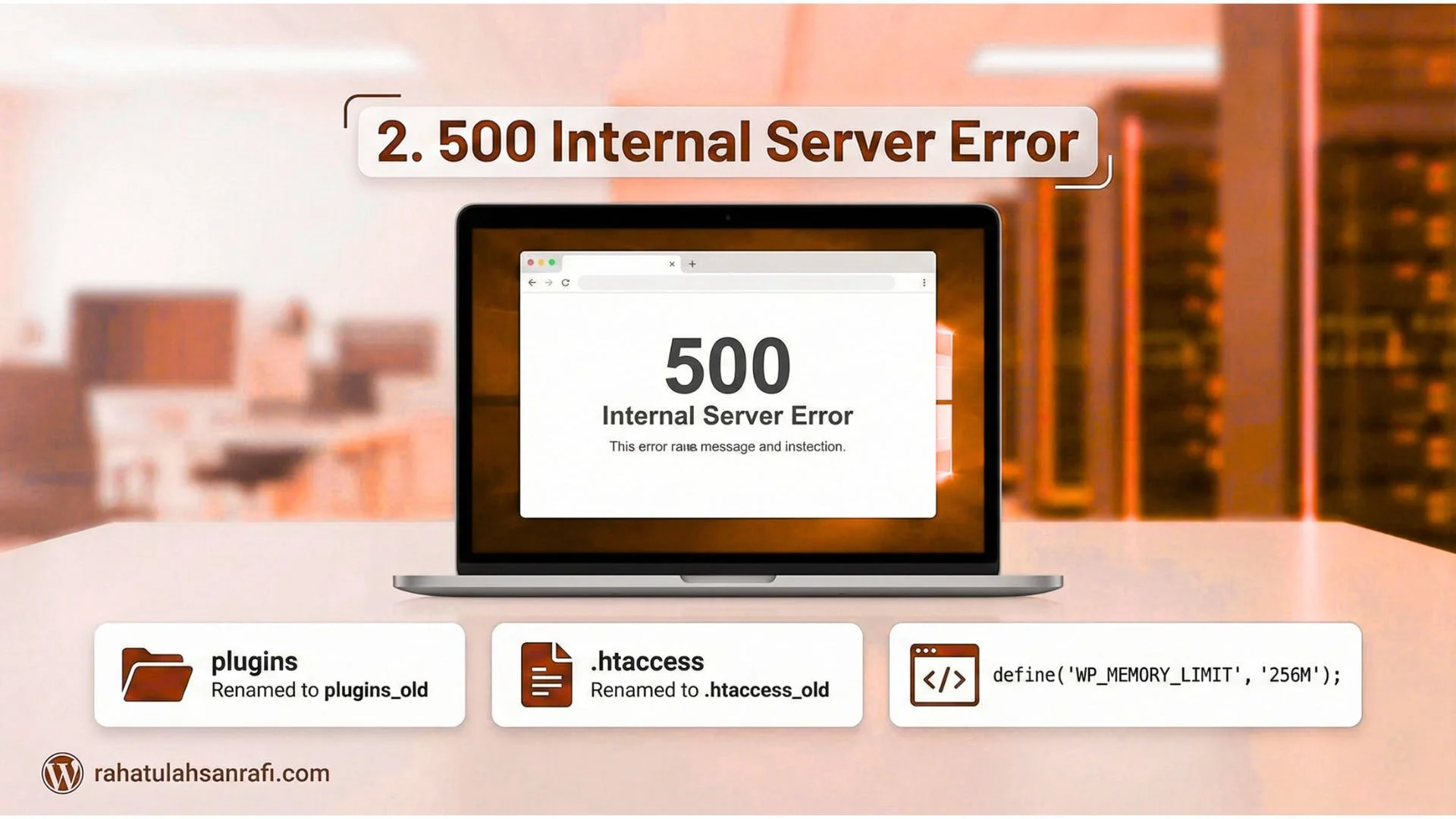
2. 500 Internal Server Error
What is it?
This error means something went wrong on the server side, but WordPress can’t identify exactly what happened.
How to Fix It:
- Deactivate Plugins: Start by deactivating all plugins. You can rename the plugin folder via FTP to do this.
- Check the .htaccess File: A corrupt .htaccess file may be the culprit. Rename it to .htaccess_old. If the site works, go to Settings > Permalinks and click “Save Changes” to regenerate the file.
- Increase PHP Memory: Add the following to wp-config.php to increase memory:
define(‘WP_MEMORY_LIMIT’, ‘256M’);
3. Error Establishing a Database Connection

What is it?
This error occurs when WordPress can’t connect to your database.
How to Fix It:
- Check Database Credentials: Open wp-config.php and ensure the DB_NAME, DB_USER, DB_PASSWORD, and DB_HOST fields are correct.
- Repair the Database: Add this line to wp-config.php to enable WordPress’s database repair tool:
define(‘WP_ALLOW_REPAIR’, true);
4. 404 Page Not Found

What is it?
A 404 error appears when a page or post is missing, or WordPress can’t find the URL.
How to Fix It:
- Reset Permalinks: Go to Settings > Permalinks and click “Save Changes” to reset the permalink structure.
- Check for Missing Pages: Make sure the page or post still exists. If not, restore it from a backup or recreate it.
5. Connection Timed Out

What is it?
This error occurs when the server takes too long to respond.
How to Fix It:
- Increase PHP Time Limit: Add set_time_limit(300); to your wp-config.php file to allow more time for the server to respond.
- Deactivate Plugins: A heavy plugin might be causing the issue. Try disabling all plugins and see if the error is resolved.
- Upgrade Hosting: If your current hosting plan is too limited, consider upgrading to a higher-tier hosting plan or a dedicated hosting option.
6. 403 Forbidden Error

What is it?
The 403 Forbidden error occurs when access to a page or resource is blocked.
How to Fix It:
- Check File Permissions: Ensure your WordPress files have the correct permissions. Set directories to 755 and files to 644.
- Deactivate Security Plugins: Security plugins like Wordfence can sometimes block legitimate access. Try deactivating them temporarily.
- Check .htaccess File: A misconfigured .htaccess file can block access. Rename it to test if that resolves the issue.
7. WordPress Stuck in Maintenance Mode

What is it?
This happens when an update is interrupted, leaving WordPress in maintenance mode.
How to Fix It:
- Delete the .maintenance File: Use FTP to remove the .maintenance file from your site’s root directory.
- Complete Pending Updates: Check your WordPress dashboard for any pending updates and complete them.
8. Too Many Redirects

What is it?
Your site gets stuck in a loop of redirects, taking you back and forth between pages.
How to Fix It:
- Clear Browser Cache: Clear your browser’s cache to make sure it’s not holding outdated redirect data.
- Check Site URL Settings: Go to Settings > General and ensure both the WordPress Address (URL) and Site Address (URL) are correct.
- Disable Plugins: Sometimes a plugin conflict causes this. Try deactivating all plugins to identify the culprit.
9. HTTP Error When Uploading Images

What is it?
This error often happens when uploading images, usually caused by server limitations or plugin conflicts.
How to Fix It:
- Increase PHP Memory Limit: Add define(‘WP_MEMORY_LIMIT’, ‘256M’); to your wp-config.php file.
- Disable Plugins: Deactivate all plugins and try uploading the image again.
- Check File Permissions: Ensure the wp-content/uploads folder has the right permissions. Set directories to 755 and files to 644.
10. Plugin Update Failed

What is it?
This error occurs when a plugin fails to update, usually due to incorrect file permissions or server issues.
How to Fix It:
- Check File Permissions: Ensure that the plugin directory has the correct permissions (755 for directories, 644 for files).
- Manually Update Plugins: Download the plugin’s latest version and upload it via FTP.
11. Plugin Conflicts

What is it?
Plugin conflicts occur when two or more plugins do not work well together, which can lead to errors on your site.
How to Fix It:
Deactivate Plugins: Deactivate all plugins and reactivate them one by one to identify the conflicting plugin.
Update Plugins: Make sure all plugins are up-to-date.
- Use a Plugin Conflict Checker: Tools like the Plugin Detective plugin can help find conflicts automatically.
12. 403 Forbidden Error on Media Uploads

What is it?
The 403 Forbidden error can occur when trying to upload media files like images and videos. This is usually due to restrictive file permissions or security plugins.
How to Fix It:
Check File Permissions: Ensure the wp-content/uploads folder has 755 permissions for directories and 644 for files.
Disable Security Plugins: Temporarily deactivate security plugins like Wordfence to see if they are causing the issue.
- Switch to Default Theme: Themes can sometimes interfere with uploads. Switch to a default theme like Twenty Twenty-One to check.
13. Database Connection Timed Out
What is it?
This error occurs when your server can’t establish a connection to the database within the specified time.
How to Fix It:
Increase PHP Timeout Limit: Add set_time_limit(300); to wp-config.php to give more time for the connection to establish.
Optimize Database: Use plugins like WP-Optimize to clean up and optimize your database.
- Check Hosting Resources: Contact your hosting provider and consider upgrading if you are on shared hosting.
14. Plugin Not Showing in Admin Menu
What is it?
Sometimes, even after installing a plugin, it doesn’t show up in the WordPress admin menu. This is often due to insufficient user permissions or plugin settings.
How to Fix It:
Check User Role: Ensure the logged-in user has admin privileges.
Deactivate Other Plugins: A plugin conflict might cause this issue. Deactivate other plugins to see if the missing plugin shows up.
- Reinstall Plugin: Delete and reinstall the plugin to see if that resolves the problem.
15. 404 Error After Migrating WordPress Site
What is it?
This error appears after migrating a WordPress site and occurs when the permalinks are not properly configured, resulting in 404 errors on your pages.
How to Fix It:
Reset Permalinks: Go to Settings > Permalinks and click “Save Changes” to regenerate the .htaccess file.
Check URL Settings: Make sure the WordPress Address (URL) and Site Address (URL) in Settings > General are correctly set.
Use Redirects: Use plugins like Redirection to ensure old URLs redirect to the new ones.
16. Site Running Slow
What is it?
A slow WordPress site can harm the user experience and affect SEO rankings. Causes could include heavy plugins, large images, or poor hosting.
How to Fix It:
Optimize Images: Use tools like Smush or EWWW Image Optimizer to compress images.
Implement Caching: Use a caching plugin like W3 Total Cache or WP Super Cache to speed up your site.
- Upgrade Hosting: If your site is growing, consider upgrading your hosting plan or switching to Managed WordPress Hosting.
17. HTTP Error on Image Upload
What is it?
The HTTP error typically occurs when uploading images. It is often caused by server configuration issues or plugin conflicts.
How to Fix It:
Increase PHP Memory Limit: Add define(‘WP_MEMORY_LIMIT’, ‘256M’); to your wp-config.php file.
Disable Plugins: Temporarily deactivate all plugins and try uploading the image again.
- Check File Permissions: Ensure the wp-content/uploads folder has the correct permissions.
18. Too Many Requests Error
What is it?
This error happens when the server receives more requests than it can handle, usually due to too many active plugins or poor server performance.
How to Fix It:
Reduce Active Plugins: Deactivate unnecessary plugins to reduce server load.
Upgrade Hosting: If your site gets a lot of traffic, consider upgrading to a better hosting plan.
- Use a Caching Plugin: Implement caching to reduce the number of requests to your server.
19. Missing Sidebar or Widgets Not Showing
What is it?
Sometimes, WordPress themes fail to display sidebars or widgets on certain pages.
How to Fix It:
Check Widget Settings: Go to Appearance > Widgets and make sure the sidebar has widgets assigned.
Switch to Default Theme: If the issue persists, switch to a default WordPress theme like Twenty Twenty-One to check if the theme is the cause.
- Check Page Templates: Some custom page templates may not support sidebars. Make sure your page template includes the sidebar.
20. Critical Error on Website
What is it?
A critical error can happen when a plugin or theme malfunctions, causing your site to break.
How to Fix It:
Check Email for Recovery Mode: WordPress will send an email with a recovery link if it detects a critical error.
Deactivate Plugins: Deactivate all plugins via FTP to check if a plugin is causing the issue.
- Switch to Default Theme: If the issue is caused by the theme, switch to a default WordPress theme.
21. Database Connection Error
What is it?
The Database Connection Error happens when WordPress cannot connect to the database due to incorrect credentials or server issues.
How to Fix It:
Check wp-config.php: Ensure the DB_NAME, DB_USER, DB_PASSWORD, and DB_HOST fields in the wp-config.php file are correct.
- Repair Database: Use WordPress’s built-in database repair tool by adding define(‘WP_ALLOW_REPAIR’, true); to wp-config.php. Then visit http://yoursite.com/wp-admin/maint/repair.php to repair the database.
22. Memory Exhausted Error
What is it?
The memory exhausted error occurs when your site exceeds the PHP memory limit.
How to Fix It:
Increase PHP Memory: Add define(‘WP_MEMORY_LIMIT’, ‘256M’); to wp-config.php to increase the available memory.
Deactivate Plugins: Deactivate unnecessary plugins or switch to a lightweight theme to free up memory.
- Upgrade Hosting: If the issue persists, consider upgrading your hosting plan to one with more resources.
23. Error Establishing Secure Connection (SSL)
What is it?
The SSL connection error occurs when WordPress cannot establish a secure connection, often due to issues with the SSL certificate.
How to Fix It:
Check SSL Certificate: Ensure your SSL certificate is correctly installed and valid.
Force SSL: Add define(‘FORCE_SSL_ADMIN’, true); to wp-config.php to force SSL in the admin area.
- Update URLs to HTTPS: Go to Settings > General and update both the WordPress Address (URL) and Site Address (URL) to https://.
24. Plugin Update Failed – File Permissions Error
What is it?
This error typically occurs when you try to update a plugin, but WordPress cannot overwrite the plugin files due to incorrect file permissions.
How to Fix It:
Check File Permissions: Ensure that the plugin directory has the correct permissions (755 for directories and 644 for files).
Manually Update Plugin: If the update fails, download the latest version of the plugin and upload it manually via FTP.
- Contact Hosting Provider: If issues persist, your hosting provider may need to adjust file permissions.
25. WordPress Stuck in Maintenance Mode
What is it?
WordPress can sometimes get stuck in maintenance mode after an update fails or is interrupted, leaving your site temporarily unavailable.
How to Fix It:
Delete .maintenance File: Access your site via FTP or file manager and delete the .maintenance file located in the root directory.
- Complete Pending Updates: Check your WordPress dashboard for any pending updates and complete them.
26. Page Builders Not Saving Changes
What is it?
This issue can occur when using page builders like Elementor or Divi, where changes are not saved due to plugin conflicts or memory issues.
How to Fix It:
Increase PHP Memory: Add define(‘WP_MEMORY_LIMIT’, ‘256M’); to your wp-config.php file to allocate more memory.
Check for JavaScript Conflicts: Some themes or plugins might conflict with page builders’ JavaScript. Try switching to a default theme to see if the issue resolves.
- Disable Caching Plugins: Caching plugins can sometimes interfere with page builders. Clear the cache or deactivate caching plugins to test the issue.
27. WordPress Login Page Redirect Loop
What is it?
A login redirect loop happens when you are repeatedly redirected to the login page after entering your credentials.
How to Fix It:
Clear Cookies and Cache: Clear your browser’s cookies and cache to remove any corrupted session data.
Check URL Settings: Go to Settings > General and ensure that both the WordPress Address (URL) and Site Address (URL) are correct.
- Disable Plugins: A plugin conflict might be causing this issue. Deactivate all plugins and check if the loop stops.
28. Missing Admin Bar
What is it?
The admin bar (the black bar at the top of the page for logged-in users) can sometimes disappear, making it harder to navigate the site’s admin area.
How to Fix It:
Check User Profile Settings: Go to Users > Your Profile and make sure the option “Show Toolbar when viewing site” is checked.
Check Theme Functions: Make sure your theme’s functions.php file includes the necessary code: <?php wp_footer(); ?>.
- Deactivate Plugins: Some plugins may hide the admin bar, especially those affecting the front-end. Disable them temporarily to check if it reappears.
29. WordPress Posts Not Showing
What is it?
When posts are visible in the admin dashboard but do not appear on the front-end of the site, this can happen due to plugin conflicts, caching issues, or incorrect permalink settings.
How to Fix It:
Check Post Status: Ensure that your posts are published and not saved as drafts or in a pending review status.
Reset Permalinks: Go to Settings > Permalinks and click “Save Changes” to refresh the permalink structure.
- Deactivate Plugins: Some plugins might hide the posts. Deactivate all plugins and check if the posts appear.
30. WordPress Admin Dashboard Loading Too Slowly
What is it?
A slow WordPress admin dashboard can affect your workflow. This can be caused by heavy plugins, themes, or server issues.
How to Fix It:
Deactivate Unused Plugins: Deactivate any plugins that are not essential to reduce server load.
Use Caching: Install a caching plugin like W3 Total Cache or WP Super Cache to speed up your site.
- Optimize the Database: Use a plugin like WP-Optimize to clean up your database and improve performance.
31. Error Establishing Secure Connection (SSL)
What is it?
An SSL connection error occurs when WordPress cannot establish a secure connection, often due to issues with the SSL certificate or server configuration.
How to Fix It:
Check SSL Certificate: Ensure your SSL certificate is installed correctly and is valid.
Force SSL in Admin Area: Add define(‘FORCE_SSL_ADMIN’, true); to your wp-config.php file to enforce SSL for the admin area.
- Update URLs to HTTPS: Go to Settings > General and make sure both the WordPress Address (URL) and Site Address (URL) are updated to https://.
32. WordPress Admin Bar Missing in the Front-End
What is it?
The admin bar can sometimes be missing on the front-end for logged-in users, which can make site management difficult.
How to Fix It:
Check User Profile Settings: Go to Users > Your Profile and make sure “Show Toolbar when viewing site” is checked.
Deactivate Plugins: Certain plugins, especially those related to performance or security, can hide the admin bar. Deactivate plugins one by one to identify the cause.
- Switch to a Default Theme: If the issue persists, switch to a default theme like Twenty Twenty-One to see if it resolves the issue.
33. WordPress Site Showing a 502 Bad Gateway Error
What is it?
A 502 Bad Gateway Error usually means there’s a communication problem between your server and another server, such as a reverse proxy server or CDN.
How to Fix It:
Check Server Status: Contact your hosting provider to verify if there are any server-side issues causing the error.
Clear Cache: If you’re using a CDN like Cloudflare, clear the cache to make sure the error isn’t being cached.
- Disable Plugins: Deactivate all plugins via FTP to check if one of them is causing the error. If deactivating plugins resolves the issue, reactivate them one by one to pinpoint the culprit.
34. WordPress Site Running Slow After Update
What is it?
After updating WordPress, your site might slow down due to compatibility issues with plugins or themes.
How to Fix It:
Deactivate Plugins: Deactivate all plugins and check if the site’s speed improves. Reactivate plugins one by one to find the problematic one.
Check PHP Version: Ensure your site is running a compatible PHP version (WordPress recommends PHP 7.4 or higher).
- Optimize Database: Use WP-Optimize to clean up and optimize your database, which can help improve speed.
35. HTTP 403 Forbidden Error After Logging In
What is it?
A HTTP 403 Forbidden Error after logging in typically occurs due to incorrect file permissions or security settings blocking access.
How to Fix It:
Check File Permissions: Make sure the correct permissions are set for WordPress files (755 for directories, 644 for files).
Disable Security Plugins: Some security plugins may block legitimate access. Temporarily disable security plugins to check if that resolves the issue.
- Check Server Logs: Review the server logs for any blocked requests or permission errors that may explain the problem.
36. WordPress Login Failed – Invalid Username or Password
What is it?
This error occurs when WordPress doesn’t recognize your username or password during login, preventing access to the site.
How to Fix It:
Check Login Credentials: Ensure that you’re entering the correct username and password. WordPress usernames are case-sensitive.
Reset Your Password: Use the “Lost your password?” link on the login page to reset your password via email.
- Manually Reset Password: If email reset doesn’t work, access phpMyAdmin, go to the wp_users table, and update the password field manually.
37. Missing WordPress Admin Menu or Items
What is it?
Sometimes, the admin menu may be missing or incomplete, making it difficult to navigate the WordPress dashboard.
How to Fix It:
Check User Role: Ensure that the logged-in user has the required permissions to view the full admin menu.
Deactivate Plugins: Some plugins, especially security-related ones, may hide menu items. Try deactivating plugins one by one to see if that resolves the issue.
- Switch Themes: Certain themes may not display the admin menu correctly. Switch to a default theme to check if the issue is theme-related.
38. Page Builders Not Loading
What is it?
Page builders like Elementor or WPBakery may fail to load properly due to JavaScript conflicts, plugin issues, or low server resources.
How to Fix It:
Increase PHP Memory Limit: Add define(‘WP_MEMORY_LIMIT’, ‘256M’); to your wp-config.php file to allocate more memory to WordPress.
Check for Plugin Conflicts: Deactivate other plugins to see if one is causing the page builder to fail.
Clear Browser Cache: Clear your browser’s cache or use Incognito Mode to test the issue.
39. WordPress Dashboard Showing "Pending" Posts as Published
What is it?
Sometimes, posts may show as “Pending” or “Scheduled” instead of being published. This typically happens after a plugin or WordPress update.
How to Fix It:
Check Post Status: Ensure that the posts are published and not saved as drafts or in a pending review status.
Clear Cache: If you are using a caching plugin, clear the cache to see updated post statuses.
- Check User Roles: Ensure that the user role has the correct permissions to publish posts.
40. WordPress Site Showing "503 Service Unavailable" Error
What is it?
The 503 Service Unavailable error occurs when the server is temporarily unable to handle the request, often due to server overload or maintenance.
How to Fix It:
Check Server Status: Contact your hosting provider to confirm that the server is not experiencing downtime or issues.
Disable Plugins: A plugin might be overloading the server. Deactivate all plugins and check if the site works. Reactivate plugins one by one to find the culprit.
- Increase Server Resources: If your site is receiving high traffic, consider upgrading your hosting plan for more resources.
41. Theme Missing Stylesheet Error
What is it?
This error occurs when WordPress shows a message that the stylesheet is missing while installing a theme. This usually happens if you uploaded the wrong theme file.
How to Fix It:
Re-upload the Theme: Ensure that you’re uploading the correct theme file. Sometimes, the theme zip file includes unnecessary documentation that you don’t need to upload.
Use the Correct Theme Folder: Make sure the theme is placed in the wp-content/themes directory.
- Install the Theme Properly: If needed, download the theme again from the official theme repository or a trusted marketplace and upload it properly.
42. Error: "Are You Sure You Want to Do This?"
What is it?
This error typically occurs when WordPress can’t verify a request, such as during plugin or theme installations, or when uploading files. It may also appear after a timeout.
How to Fix It:
Increase PHP Limits: Add define(‘WP_MEMORY_LIMIT’, ‘256M’); to your wp-config.php file to handle larger requests.
Check File Permissions: Ensure that your wp-content directory and its subdirectories have the correct permissions (755 for directories, 644 for files).
- Disable Plugins: A plugin conflict could be causing the issue. Try deactivating all plugins and reactivating them one by one.
43. Image Files Not Displaying Correctly
What is it?
If image files are not displaying properly on your WordPress site, even though they are visible in the Media Library, this may be caused by incorrect file permissions or other configuration issues.
How to Fix It:
Check File Permissions: Ensure the wp-content/uploads directory has the correct permissions (755 for directories, 644 for files).
Regenerate Thumbnails: Use a plugin like Regenerate Thumbnails to regenerate image sizes and fix any missing thumbnails.
- Check Image URLs: Ensure the image URLs are correct, especially if you’ve recently migrated your site. You may need to update the URLs.
44. WordPress Dashboard Not Loading Properly
What is it?
If the WordPress admin dashboard isn’t loading fully, showing a blank page or incomplete content, it might be due to plugin conflicts, corrupt theme files, or insufficient server resources.
How to Fix It:
Enable WP_DEBUG: Add define(‘WP_DEBUG’, true); to your wp-config.php file to display error messages that can help identify the cause.
Deactivate Plugins and Switch Themes: Use FTP to deactivate all plugins and switch to a default theme. This will help determine if the issue is related to a plugin or theme.
- Check PHP Version: Ensure your website is using a compatible PHP version (WordPress recommends PHP 7.4 or higher).
45. WordPress Image Upload Error: File Type Not Permitted
What is it?
This error occurs when trying to upload a file type that isn’t supported by WordPress, such as SVG or other non-standard file formats.
How to Fix It:
Allow File Types: Modify the functions.php file or install a plugin like WP Add Mime Types to safely allow unsupported file types.
Check for Security Restrictions: Some file types are blocked for security reasons. Be cautious when allowing types like SVG or PDF.
- Resize Large Images: Large images can also trigger upload issues. Resize images before uploading to avoid this error.
46. WordPress Not Sending Emails
What is it?
WordPress uses the PHP mail() function to send emails, but it can fail due to server settings, misconfigured email settings, or plugin conflicts.
How to Fix It:
Use SMTP: Install an SMTP plugin like WP Mail SMTP or Fluent SMTP to configure email settings and improve deliverability.
Check Email Settings: Ensure that your WordPress site is correctly configured to send emails. Check your hosting provider’s email settings if necessary.
- Check Spam Folder: Sometimes, emails sent from WordPress may end up in the spam folder. Ensure that they are not being marked as spam.
47. Error Establishing a Database Connection After Migration
What is it?
When migrating WordPress to a new host or domain, you might encounter an Error Establishing a Database Connection if the database credentials are incorrect or the database server is unavailable.
How to Fix It:
Check wp-config.php: Open the wp-config.php file and verify that the DB_NAME, DB_USER, DB_PASSWORD, and DB_HOST fields are correctly configured.
Repair the Database: Add define(‘WP_ALLOW_REPAIR’, true); to your wp-config.php file. Then, visit http://yoursite.com/wp-admin/maint/repair.php to repair the database.
- Check Database Server Status: Contact your hosting provider to ensure the database server is running properly.
48. WordPress Site Stuck in Maintenance Mode
What is it?
WordPress can sometimes remain in Maintenance Mode even after a plugin or update that triggered maintenance mode has been deactivated.
How to Fix It:
Remove the .maintenance File: Use FTP to check your site’s root directory and delete the .maintenance file.
Complete Pending Updates: Log into your WordPress dashboard and check if there are any pending updates. Complete the update process if necessary.
- Clear Cache: If you’re still seeing the maintenance page, clear your browser cache to ensure that you’re not seeing an outdated page.
49. "Are You Sure You Want to Do This?" Error
What is it?
This error is often encountered during plugin or theme installations, or when uploading files. It usually occurs due to server timeouts, memory issues, or security conflicts.
How to Fix It:
Increase PHP Limits: Add define(‘WP_MEMORY_LIMIT’, ‘256M’); to your wp-config.php file to allow larger requests.
Check File Permissions: Ensure the wp-content directory and its subdirectories have the correct write permissions (755 for directories, 644 for files).
- Disable Plugins: A plugin conflict can cause this error. Try deactivating all plugins and then reactivate them one by one to find the culprit.
50. WordPress Admin Bar Missing After Login
What is it?
The admin bar, which allows logged-in users to navigate the WordPress admin area easily, can sometimes disappear after logging in.
How to Fix It:
Check User Profile: Go to Users > Your Profile and ensure “Show Toolbar when viewing site” is checked.
Deactivate Plugins: Some plugins, particularly those affecting front-end behavior, can hide the admin bar. Deactivate them to see if the bar reappears.
- Check Theme Functions: If your theme’s functions.php file disables the admin bar, switch to a default theme like Twenty Twenty-One to test if that resolves the issue.
51. WordPress Posts Not Showing on Front-End
What is it?
If posts are visible in the admin dashboard but aren’t showing up on the front-end of the site, it could be due to issues like incorrect permalink settings, plugin conflicts, or missing categories.
How to Fix It:
Check Post Status: Ensure that your posts are marked as “Published” and not as drafts or pending review.
Reset Permalinks: Go to Settings > Permalinks and click “Save Changes” to refresh your permalink structure.
- Deactivate Plugins: Deactivate all plugins to check if one is causing the issue. If this fixes the problem, reactivate them one by one to identify the conflicting plugin.
52. WordPress Admin Dashboard Blank Page
What is it?
A blank page on the WordPress admin dashboard is often caused by PHP errors, plugin conflicts, or insufficient server resources.
How to Fix It:
Enable WP_DEBUG: Add define(‘WP_DEBUG’, true); to your wp-config.php file to display error messages that can help pinpoint the issue.
Deactivate Plugins: Use FTP to rename the plugins folder to deactivate all plugins. If this resolves the issue, reactivate plugins one by one to identify the culprit.
- Increase PHP Memory: Add the following line to wp-config.php: define(‘WP_MEMORY_LIMIT’, ‘256M’);
53. WordPress Site Showing a 404 Error for Custom Post Types
What is it?
A 404 error for custom post types typically occurs if the custom content types aren’t registered correctly or if permalinks are misconfigured.
How to Fix It:
Flush Rewrite Rules: Go to Settings > Permalinks and click “Save Changes” to refresh the rewrite rules.
Check Custom Post Type Registration: Ensure that your custom post types are properly registered in your theme or plugin files.
- Check for Plugin Conflicts: Disable plugins one by one to check if any are conflicting with custom post types.
54. Too Many Plugins Deactivated or Not Updating Automatically
What is it?
Having too many plugins deactivated or failing to update automatically can cause security risks or performance issues on your WordPress site.
How to Fix It:
Deactivate Unnecessary Plugins: Deactivate any plugins that are not essential for your site’s operation to reduce the risk of conflicts and speed up the site.
Enable Automatic Updates: In Settings > General, enable automatic updates for themes and plugins to ensure they stay up-to-date.
- Use Plugin Management Tools: Install a plugin like Plugin Organizer to help manage plugin activation and performance.
55. Plugin Conflicts with WordPress Core
What is it?
A plugin conflict occurs when a plugin interacts improperly with WordPress core files, leading to layout breaks or features not working as expected.
How to Fix It:
Deactivate Plugins: Deactivate all plugins and check if the issue is resolved. If so, reactivate plugins one by one to identify the conflicting plugin.
Update WordPress and Plugins: Ensure that both WordPress core and all installed plugins are up-to-date. Updates often resolve conflicts.
- Contact Plugin Developers: If a specific plugin is causing issues, reach out to the plugin’s support team for assistance.
56. 500 Internal Server Error After WordPress Update
What is it?
A 500 Internal Server Error after updating WordPress may be caused by server overload, corrupted files, or plugin conflicts.
How to Fix It:
Restore from Backup: If you have a recent backup, restore your website to the previous working version.
Increase PHP Memory Limit: Add define(‘WP_MEMORY_LIMIT’, ‘256M’); to your wp-config.php file to allocate more memory.
- Deactivate All Plugins: Use FTP to rename the plugins folder to deactivate all plugins. If the error is resolved, reactivate plugins one by one to find the culprit.
57. WordPress Site Stuck in "Coming Soon" Mode
What is it?
WordPress can sometimes remain stuck in “Coming Soon” mode, even after deactivating the plugin that initially triggered it.
How to Fix It:
Deactivate Maintenance Mode Plugin: If you are using a plugin like Coming Soon, go to the plugin settings and disable it.
Remove .maintenance File: Use FTP to check your site’s root directory and delete the .maintenance file.
- Clear Cache: If you’re using a caching plugin, clear your browser’s cache or temporarily disable the caching plugin to solve the issue.
58. WordPress Admin Bar Not Showing on Front-End
What is it?
The admin bar can sometimes disappear for logged-in users on the front-end of your WordPress site.
How to Fix It:
Check User Profile: Go to Users > Your Profile and ensure that “Show Toolbar when viewing site” is checked.
Deactivate Plugins: Some plugins, particularly those that modify front-end behavior, may hide the admin bar. Deactivate them to see if the bar reappears.
- Check Theme Functions: If the theme’s functions.php file disables the admin bar, switch to a default theme like Twenty Twenty-One to see if that resolves the issue.
59. WordPress Site Showing a 502 Bad Gateway Error
What is it?
A 502 Bad Gateway error typically indicates a communication problem between your server and another server, such as a reverse proxy or CDN.
How to Fix It:
Check Server Status: Contact your hosting provider to ensure that there are no server-side issues.
Clear Cache: If you’re using a CDN (like Cloudflare), clear the cache to ensure the error isn’t being cached.
- Disable Plugins: Deactivate all plugins via FTP to check if one of them is causing the error. If deactivating plugins resolves the error, reactivate them one by one to identify the problematic plugin.
60. WordPress Site Running Slow After Update
What is it?
Your WordPress site may experience slower load times after a major update due to plugin incompatibility or issues with server performance.
How to Fix It:
Deactivate Plugins: Disable all plugins to check if the site’s speed improves. If it does, reactivate plugins one by one to find the culprit.
Check PHP Version: Ensure that your website is running a compatible PHP version (WordPress recommends PHP 7.4 or higher).
- Optimize Database: Use plugins like WP-Optimize to clean and optimize your database.
61. HTTP 403 Forbidden Error After Logging In
What is it?
The HTTP 403 Forbidden error occurs after logging in due to incorrect file permissions or security settings blocking access.
How to Fix It:
Check File Permissions: Ensure your WordPress files are set to the correct permissions (755 for directories, 644 for files).
Disable Security Plugins: Some security plugins (like Wordfence) may block legitimate access. Disable them temporarily to see if the issue resolves.
- Check .htaccess File: A misconfigured .htaccess file may cause the issue. Rename it temporarily and regenerate it by going to Settings > Permalinks and clicking “Save Changes”.
62. Invalid JSON Error After WordPress Update
What is it?
The Invalid JSON error occurs after a WordPress update when the REST API fails to load properly, often due to plugin conflicts or incorrect server configurations.
How to Fix It:
Clear Browser Cache: Clear your browser’s cache to remove any outdated data.
Disable Security Plugins: Security plugins can sometimes block REST API requests. Temporarily deactivate them to check if the issue resolves.
- Check for Plugin/Theme Conflicts: Deactivate plugins one by one and switch to a default theme to identify the cause of the conflict.
63. Error: Cannot Modify Header Information – Headers Already Sent
What is it?
This error occurs when there’s an issue with sending HTTP headers, usually due to extra spaces or lines in the wp-config.php file or functions.php.
How to Fix It:
Remove Extra Spaces: Ensure there are no extra spaces or blank lines before <?php or after ?> in the wp-config.php and functions.php files.
Disable Plugins: A plugin conflict can cause this issue. Try deactivating all plugins to resolve the error.
- Check for Output Before Headers: Ensure that no unwanted output (such as extra spaces) is being sent before the headers in the wp-config.php file.
64. WordPress Dashboard Is Blank After Logging In
What is it?
A blank WordPress dashboard can occur due to PHP errors, theme issues, or plugin conflicts.
How to Fix It:
Enable WP_DEBUG: Add this line to your wp-config.php file to display error messages: define(‘WP_DEBUG’, true);
Check Error Logs: Enable WP_DEBUG_LOG to log error messages to a debug file.
- Deactivate Plugins and Switch Themes: Deactivate all plugins and switch to a default theme (like Twenty Twenty-One) to identify the cause of the issue.
65. WordPress Site Showing a 404 Error for Custom Post Types
What is it?
A 404 error for custom post types happens when custom content types are not properly registered, or permalinks are not correctly configured.
How to Fix It:
Flush Rewrite Rules: Go to Settings > Permalinks and click “Save Changes” to refresh the rewrite rules.
Check Custom Post Type Registration: If you are using custom post types, ensure they are correctly registered in your theme or plugin files.
- Check for Plugin Conflicts: Deactivate other plugins to see if one is conflicting with custom post types.
66. WordPress Site Not Indexed by Google
What is it?
If your WordPress site isn’t appearing in Google search results, it could be due to incorrect settings like “noindex” being set or your site being hidden from search engines.
How to Fix It:
Check Visibility Settings: Go to Settings > Reading and make sure that the “Discourage search engines from indexing this site” box is unchecked.
Submit Your Sitemap: Ensure you have a sitemap (you can use plugins like Yoast SEO or RankMath) and submit it to Google Search Console for indexing.
- Check for “noindex” Tags: Ensure that your pages or posts are not marked as “noindex” in the meta tags or by an SEO plugin.
67. WordPress Sidebar Not Showing on Some Pages
What is it?
The sidebar may not display on certain pages, often due to theme issues or improper template settings.
How to Fix It:
Check Page Templates: Some custom page templates may not include sidebars. Ensure that the template you’re using supports sidebars.
Check Widget Settings: Go to Appearance > Widgets and ensure the sidebar has widgets assigned.
- Switch to a Default Theme: Test if the issue is theme-related by switching to a default theme like Twenty Twenty-One.
68. WordPress Site Showing a 502 Bad Gateway Error
What is it?
A 502 Bad Gateway Error usually occurs when one server fails to respond to another server’s request, often due to a misconfiguration or high server load.
How to Fix It:
Check Server Status: Contact your hosting provider to verify if the server is up and running, and to check for any server-side issues.
Clear Cache: If you’re using a CDN like Cloudflare, clear the cache to ensure the error isn’t being cached.
- Disable Plugins: Deactivate all plugins via FTP to see if one of them is causing the error. Reactivate them one by one to identify the problematic plugin.
69. WordPress Image Uploads Showing a 404 Error
What is it?
You might encounter a 404 error when uploading or trying to view an image on your WordPress site, which is often due to incorrect file permissions or a permalink issue.
How to Fix It:
Reset Permalinks: Go to Settings > Permalinks and click “Save Changes” to refresh the permalink structure.
Check File Permissions: Ensure the wp-content/uploads folder has the correct permissions (755 for directories, 644 for files).
- Check .htaccess File: Sometimes, your .htaccess file may have rules that block media files. Rename it temporarily to see if that resolves the issue.
70. WordPress Site Showing "500 Internal Server Error" After Update
What is it?
After updating WordPress, plugins, or themes, you might see a 500 Internal Server Error caused by misconfigurations, plugin conflicts, or server issues.
How to Fix It:
Restore from Backup: If you have a recent backup, restore your website to a previous working version.
Increase PHP Memory Limit: Add the following line to your wp-config.php file: define(‘WP_MEMORY_LIMIT’, ‘256M’);
- Deactivate All Plugins: Use FTP to rename the plugins folder and deactivate all plugins. If the site works, reactivate plugins one by one to identify the culprit.
71. WordPress Admin Bar Missing
What is it?
The admin bar (the black bar at the top of your site when logged in) can disappear, making it harder to access the WordPress dashboard.
How to Fix It:
Check User Profile Settings: Go to Users > Your Profile and ensure “Show Toolbar when viewing site” is checked.
Deactivate Plugins: Some plugins, especially those affecting front-end behavior, can hide the admin bar. Disable them one by one to see if it reappears.
- Check Theme Functions: If your theme’s functions.php file disables the admin bar, switch to a default theme like Twenty Twenty-One to test if that resolves the issue.
72. Too Many Redirects Error
What is it?
The Too Many Redirects error happens when your site is caught in an infinite redirect loop, which can often occur after making changes to site URLs or SSL settings.
How to Fix It:
Clear Browser Cache: Clear your browser’s cache and cookies to ensure that outdated redirect information isn’t being stored.
Check URL Settings: Go to Settings > General and ensure both WordPress Address (URL) and Site Address (URL) are set correctly.
- Check Redirect Rules: If you’re using a redirection plugin, ensure that no conflicting rules are causing the issue.
73. Plugin Not Showing in WordPress Admin Menu
What is it?
A plugin may not appear in the WordPress admin menu even though it’s installed and activated, often due to permission issues or conflicts with other plugins.
How to Fix It:
Check User Permissions: Ensure the logged-in user has sufficient privileges to access the plugin settings.
Check Plugin Settings: Some plugins need specific configurations to display their menu. Review the plugin’s settings.
- Deactivate Other Plugins: Sometimes, plugin conflicts can cause issues. Deactivate other plugins and check if the missing plugin appears.
74. WordPress Posts Not Showing on Front-End
What is it?
If posts are visible in the admin dashboard but don’t appear on the front-end, the issue might be due to incorrect permalink settings, plugin conflicts, or missing post categories.
How to Fix It:
Check Post Status: Ensure your posts are published and not saved as drafts or in pending review status.
Reset Permalinks: Go to Settings > Permalinks and click “Save Changes” to refresh your permalink structure.
- Deactivate Plugins: Some plugins might conflict with the display of posts. Deactivate plugins one by one to identify the culprit.
75. Missing Admin Bar in WordPress
What is it?
The admin bar may not appear for logged-in users, especially on the front-end of the site.
How to Fix It:
Check User Profile Settings: Go to Users > Your Profile and ensure that the “Show Toolbar when viewing site” option is checked.
Deactivate Plugins: Certain plugins, particularly those modifying front-end behavior, may hide the admin bar. Try deactivating them.
- Switch to a Default Theme: If the theme’s functions.php is disabling the admin bar, switch to a default theme like Twenty Twenty-One.
76. Error: Upload Failed: There Was an Error Moving the File
What is it?
This error occurs when trying to upload media files, such as images or videos, and WordPress fails to move the file into the wp-content/uploads folder.
How to Fix It:
Check File Permissions: Ensure that the wp-content/uploads directory has correct permissions (755 for directories, 644 for files).
Increase PHP Upload Limit: Increase the file upload limit in the php.ini file or ask your hosting provider to do so.
- Disable Plugins: Deactivate plugins that could be interfering with file uploads.
77. Too Many Requests Error
What is it?
The Too Many Requests error typically occurs when your server is receiving more requests than it can handle. This can be due to too many active plugins or high server load.
How to Fix It:
Reduce Active Plugins: Deactivate unnecessary plugins to reduce the number of requests your server is handling.
Upgrade Hosting Plan: If your site is receiving high traffic, consider upgrading your hosting to a more powerful plan.
- Use a Caching Plugin: Implement a caching solution like W3 Total Cache or WP Super Cache to reduce server requests.
78. WordPress Site Stuck in "Under Construction" Mode
What is it?
Your site may be stuck in Under Construction mode after using a plugin, even if the plugin is disabled.
How to Fix It:
Deactivate Maintenance Mode Plugin: Go to your plugin settings and disable the Under Construction mode.
Delete the .maintenance File: Use FTP to check your site’s root directory and delete the .maintenance file if it exists.
- Clear Cache: Sometimes, clearing your browser’s cache or disabling any caching plugins will solve the issue.
79. Plugin Update Failed: File Permissions
What is it?
This error occurs when you attempt to update a plugin, but WordPress can’t overwrite the plugin files due to incorrect file permissions.
How to Fix It:
Check File Permissions: Ensure that the plugin folder has the correct permissions: 755 for directories and 644 for files.
Manually Update the Plugin: If the update fails, manually upload the latest version via FTP.
- Contact Hosting Provider: If you continue facing permission issues, contact your hosting provider for assistance.
80. Missing Sidebar on Some Pages
What is it?
The sidebar may not show up on certain pages due to theme or template settings.
How to Fix It:
Check Page Templates: Ensure that the page template you are using supports sidebars.
Check Widget Settings: Go to Appearance > Widgets and ensure that the sidebar has widgets assigned to it.
- Switch to Default Theme: Test if the issue is theme-related by switching to a default theme like Twenty Twenty-One.
81. WordPress Site Showing a 504 Gateway Timeout Error
What is it?
A 504 Gateway Timeout error occurs when a server is unable to receive a timely response from another server or service, such as an API or another server in a multi-server setup. This issue is often related to server performance or network problems.
How to Fix It:
Increase PHP Timeout: Add the following line to your wp-config.php file to increase the maximum execution time: set_time_limit(300);
Check Server Load: Contact your hosting provider to check if there are any performance issues on their end.
- Disable Caching: Sometimes caching plugins or CDNs like Cloudflare may cause timeout issues. Clear the cache or temporarily disable these services.
82. WordPress Dashboard Not Loading Properly
What is it?
Sometimes, the WordPress dashboard may fail to load properly, showing a blank page or partial content. This can occur due to plugin conflicts, a corrupt theme, or insufficient server resources.
How to Fix It:
Enable WP_DEBUG: Add this line to your wp-config.php file to display error messages: define(‘WP_DEBUG’, true); This will help pinpoint what’s causing the issue.
Check for Plugin Conflicts: Disable all plugins via FTP by renaming the plugins folder. If the dashboard loads, reactivate the plugins one by one to find the culprit.
Increase PHP Memory: Add the following line to your wp-config.php file to allocate more memory: define(‘WP_MEMORY_LIMIT’, ‘256M’);
- Switch to Default Theme: If plugins aren’t the issue, try switching to a default WordPress theme like Twenty Twenty-One.
83. WordPress Admin Page Redirect Loop
What is it?
A redirect loop occurs when trying to access the admin panel, but WordPress redirects you back to the login page. This issue is often caused by incorrect URL settings or cookies.
How to Fix It:
Clear Browser Cookies: Clear the cookies and cache in your browser to remove any outdated session data.
Check URL Settings: Go to Settings > General and ensure that both WordPress Address (URL) and Site Address (URL) are correct.
- Disable Plugins: Some plugins, particularly security plugins, may cause redirect loops. Deactivate them to check if the issue resolves.
84. WordPress Site Not Sending Emails
What is it?
WordPress relies on PHP’s mail() function to send emails, but it may not work properly due to server configuration, a plugin conflict, or email settings issues.
How to Fix It:
Use an SMTP Plugin: Install a plugin like WP Mail SMTP or Fluent SMTP to set up a reliable SMTP server to handle your emails.
Check Email Settings: Ensure that WordPress is properly configured to send emails. You can check your hosting provider’s email settings to ensure everything is set up correctly.
- Check Spam Folder: Sometimes emails are sent but get caught in your email service’s spam folder. Make sure to check there.
85. Error Establishing a Database Connection After Migration
What is it?
When migrating WordPress to a new host or domain, you may see an Error Establishing a Database Connection if the database credentials are incorrect or the database server is unavailable.
How to Fix It:
Check wp-config.php: Open the wp-config.php file and verify that the database name, username, password, and host are correctly configured.
Repair the Database: WordPress has a built-in tool to repair the database. Add this line to wp-config.php:
define(‘WP_ALLOW_REPAIR’, true);
Then, visit http://yoursite.com/wp-admin/maint/repair.php to repair the database.- Check Database Server Status: Contact your hosting provider to ensure that the database server is running properly.
86. WordPress Site Stuck in Maintenance Mode
What is it?
WordPress can sometimes get stuck in maintenance mode if an update is interrupted. This leaves your site displaying a message saying it’s “Briefly unavailable for scheduled maintenance.”
How to Fix It:
Remove .maintenance File: Use FTP to access your site’s root directory and delete the .maintenance file.
Complete Pending Updates: Log into the WordPress Dashboard and check if there are any pending updates. Complete the update process if necessary.
- Clear Cache: Clear your browser cache to ensure that you’re not seeing an outdated page.
87. "Are You Sure You Want to Do This?" Error
What is it?
This error typically happens when WordPress can’t verify a request during plugin or theme installation or while uploading files. It is often caused by server timeouts, memory issues, or security conflicts.
How to Fix It:
Increase PHP Limits: Add this line to wp-config.php to increase PHP memory and execution time:
define(‘WP_MEMORY_LIMIT’, ‘256M’)Check File Permissions: Ensure the wp-content directory and its subdirectories have the correct write permissions (755 for directories, 644 for files).
- Disable Plugins: A plugin conflict can cause this error. Deactivate all plugins and then reactivate them one by one to find the culprit.
88. WordPress Admin Bar Missing After Login
What is it?
The admin bar, which appears at the top of the page for logged-in users, can sometimes disappear after logging into WordPress, especially on the front-end.
How to Fix It:
Check User Profile: Go to Users > Your Profile and ensure “Show Toolbar when viewing site” is checked.
Deactivate Plugins: Some plugins, particularly security or performance-related plugins, may hide the admin bar. Deactivate plugins one by one to identify the culprit.
- Check Theme Functions: If your theme’s functions.php file disables the admin bar, switch to a default theme like Twenty Twenty-One to test if the issue is theme-related.
89. HTTP Error When Uploading Images
What is it?
This error occurs when uploading images, often due to server limitations, file size restrictions, or plugin conflicts.
How to Fix It:
Increase PHP Memory: Add this line to wp-config.php to allocate more memory:
define(‘WP_MEMORY_LIMIT’, ‘256M’);Disable Plugins: Temporarily deactivate plugins to check if any of them is causing the issue.
Check File Permissions: Ensure the wp-content/uploads folder has the correct write permissions (755 for directories, 644 for files).
- Resize Large Images: Large images can trigger this error. Resize images before uploading to avoid the issue.
90. WordPress Admin Dashboard Blank Page
What is it?
A blank page can appear in the WordPress admin area, which is often a result of a plugin or theme conflict, PHP errors, or memory issues.
How to Fix It:
Enable WP_DEBUG: Add this line to wp-config.php to display error messages that may help identify the issue:
define(‘WP_DEBUG’, true);Deactivate Plugins: Use FTP to rename the plugins folder to deactivate all plugins. If this resolves the issue, reactivate plugins one by one to find the culprit.
- Increase PHP Memory Limit: Add the following line to wp-config.php to increase memory allocation:
define(‘WP_MEMORY_LIMIT’, ‘256M’);
91. The Package Could Not Be Installed – The Theme is Missing the Style.css Stylesheet
What is it?
This error occurs when trying to install a theme that is missing the style.css file, causing WordPress to display the error message.
How to Fix It:
Re-upload the Theme: Ensure you’ve uploaded the correct theme file. Sometimes the downloaded theme package includes documentation, which you don’t need to upload.
Check the Theme Folder: The theme file should be placed directly inside the wp-content/themes directory.
- Extract the Theme ZIP: Extract the theme zip file on your computer and verify that it contains the style.css file and other essential theme files before uploading it.
92. WordPress Showing 403 Forbidden Error After Login
What is it?
The 403 Forbidden error after logging into WordPress usually happens when file permissions are incorrect or a security plugin is blocking access.
How to Fix It:
Check File Permissions: Ensure that the WordPress files are set with the correct permissions. Directories should be 755, and files should be 644.
Disable Security Plugins: Temporarily disable any security plugins (like Wordfence) to see if they are blocking access.
- Check .htaccess File: A misconfigured .htaccess file can cause this error. Rename the file and regenerate it by going to Settings > Permalinks and clicking “Save Changes.”
93. WordPress Site Running Slow
What is it?
A slow WordPress site can impact user experience, search engine rankings, and overall performance. This can be caused by various factors, including heavy plugins, unoptimized images, or hosting limitations.
How to Fix It:
Optimize Images: Compress large images before uploading or use plugins like Smush to optimize images automatically.
Install a Caching Plugin: Use caching plugins like W3 Total Cache or WP Super Cache to store static versions of your pages and speed up load times.
Use a Content Delivery Network (CDN): A CDN, like Cloudflare, caches your site’s static content and serves it from multiple locations worldwide, reducing server load.
- Upgrade Hosting: If you’re using shared hosting, consider upgrading to managed WordPress hosting or a VPS for better performance.
94. Missing WordPress Admin Menu Items
What is it?
Sometimes, the WordPress admin menu may be missing some items or not displaying correctly. This can happen if there is a plugin conflict or issues with user roles.
How to Fix It:
Deactivate Plugins: Some plugins, particularly those related to user roles or security, may cause the admin menu to disappear. Deactivate plugins one by one to identify the culprit.
Check User Roles: Ensure that the logged-in user has sufficient permissions to view all necessary menu items.
- Switch to Default Theme: A theme conflict can also cause this issue. Switch to a default theme like Twenty Twenty-One to check if the issue persists.
95. Error Establishing a Database Connection
What is it?
The Error Establishing a Database Connection message appears when WordPress can’t connect to your database. This can happen if there are incorrect credentials or issues with the database server.
How to Fix It:
Check wp-config.php: Open the wp-config.php file and verify that the DB_NAME, DB_USER, DB_PASSWORD, and DB_HOST fields are correct.
Repair the Database: Add the following line to wp-config.php to enable the database repair tool:
define(‘WP_ALLOW_REPAIR’, true);
Then, go to http://yoursite.com/wp-admin/maint/repair.php to repair the database.- Check Server Status: Contact your hosting provider to ensure the database server is up and running.
96. WordPress Not Sending Emails
What is it?
WordPress may fail to send emails due to server configurations, the use of the PHP mail() function, or issues with SMTP settings.
How to Fix It:
Install an SMTP Plugin: Use a plugin like WP Mail SMTP or Fluent SMTP to set up a reliable SMTP server to handle your emails.
Check Email Settings: Ensure that your WordPress site is configured to send emails. Some hosts block the PHP mail function, so switching to SMTP is a better solution.
- Check Spam Folder: Sometimes emails may be sent but get caught in your email service’s spam folder. Make sure to check there.
97. WordPress Plugin Update Failed
What is it?
If a plugin update fails, it can be due to file permissions, an issue with the update process, or a conflict with other plugins.
How to Fix It:
Check File Permissions: Ensure that the plugin folder has the correct permissions (755 for directories, 644 for files).
Manually Update the Plugin: If the update fails, download the latest version of the plugin from the plugin repository and upload it manually via FTP.
- Deactivate Conflicting Plugins: Temporarily deactivate all plugins and try the update again. Reactivate them one by one to find any conflicts.
98. 404 Page Not Found Error After Changing Permalinks
What is it?
After changing your permalink structure, you might encounter 404 errors on certain pages or posts. This is because the URLs no longer match the previous structure.
How to Fix It:
Reset Permalinks: Go to Settings > Permalinks and click “Save Changes” to refresh the permalink structure.
Use 301 Redirects: If you permanently change your URL structure, set up 301 redirects to redirect the old URLs to the new ones and avoid broken links.
- Check for Plugin Conflicts: Some plugins, especially SEO or caching plugins, may conflict with permalink settings. Try deactivating them temporarily to see if it resolves the issue.
99. WordPress Site Showing a 502 Bad Gateway Error
What is it?
A 502 Bad Gateway Error usually occurs when one server fails to respond to another server’s request, often due to a misconfiguration or high server load.
How to Fix It:
Check Server Status: Contact your hosting provider to verify if the server is up and running, and to check for any server-side issues.
Clear Cache: If you’re using Cloudflare or any CDN, clear the cache to ensure the error isn’t being cached.
- Disable Plugins: Deactivate all plugins via FTP to see if one of them is causing the error. Reactivate them one by one to identify the problematic plugin.
100. Plugin Conflicts with WordPress Core
What is it?
Sometimes, a plugin conflict with WordPress core can cause features or functionality to break, such as layout issues or functionality not working as expected.
How to Fix It:
Deactivate Plugins: Deactivate all plugins and check if the issue is resolved. If so, reactivate them one by one to identify the conflicting plugin.
Update WordPress and Plugins: Make sure both WordPress core and all installed plugins are updated to their latest versions, as updates often resolve conflicts.
- Contact Plugin Developers: If a specific plugin is causing issues, reach out to the plugin’s support team for assistance.
101. "This Site is Experiencing Technical Difficulties" Error
What is it?
This error typically appears after an automatic update fails, or when a plugin or theme causes a conflict in the background.
How to Fix It:
Clear Your Browser Cache: Sometimes, this error can be caused by outdated cache data. Clear your browser cache to ensure the issue isn’t stored there.
Manually Update WordPress: If the error occurred after an update, try manually updating WordPress via FTP or your hosting control panel.
- Check for Plugin Conflicts: Deactivate all plugins and check if the issue is resolved. Reactivate them one by one to find the culprit.
102. WordPress Page Not Redirecting Properly
What is it?
If you’re trying to change URLs or move your site to a new domain, you may encounter a page not redirecting properly error. This often happens due to incorrect URL configurations or improper redirects.
How to Fix It:
Check Site URL Settings: Go to Settings > General and make sure your WordPress Address (URL) and Site Address (URL) are correct.
Clear Browser Cache: Clear your browser’s cache and cookies to ensure there’s no outdated data causing the issue.
- Check .htaccess File: Ensure there are no conflicting redirect rules in the .htaccess file. Reset the file by going to Settings > Permalinks and clicking “Save Changes.”
103. White Screen of Death (WSoD) on Front-End
What is it?
The White Screen of Death (WSoD) occurs when WordPress fails to load, showing a blank page instead of the website. This is often caused by a PHP error, plugin conflict, or low memory allocation.
How to Fix It:
Enable WP_DEBUG: Add this line to wp-config.php to display errors:
define(‘WP_DEBUG’, true);
This will help pinpoint the issue.Increase PHP Memory: Add the following line to wp-config.php to allocate more memory:
define(‘WP_MEMORY_LIMIT’, ‘256M’);- Deactivate Plugins and Themes: Disable all plugins and switch to a default theme to check if the issue is caused by a plugin or theme conflict.
104. WordPress Admin Bar Missing on Front-End
What is it?
The admin bar can sometimes disappear for logged-in users on the front-end, especially if there are issues with the theme or user profile settings.
How to Fix It:
Check User Profile Settings: Go to Users > Your Profile and make sure “Show Toolbar when viewing site” is checked.
Deactivate Plugins: Some plugins, particularly caching or performance optimization plugins, may hide the admin bar. Deactivate them to test.
- Check Theme Functions: If the theme’s functions.php file disables the admin bar, switch to a default theme like Twenty Twenty-One.
WordPress Errors FAQ
1. Why does WordPress give me errors?
WordPress errors can happen due to conflicts between plugins or themes, server issues, or outdated software.
2. Can I fix WordPress errors without coding?
Yes, many WordPress errors can be fixed without coding. You can deactivate plugins, reset permalinks, and clear cache without touching the code.
3. How do I prevent WordPress errors in the future?
To prevent errors:
Keep WordPress, themes, and plugins updated.
Use reliable hosting.
- Perform regular backups.
Conclusion
There you have it—a comprehensive guide to fixing over 100+ common WordPress errors. WordPress can sometimes throw a curveball, but knowing how to troubleshoot these errors ensures you stay in control of your website. If you follow these steps, you’ll likely be able to resolve most issues without needing outside help.
But if you ever feel stuck or need professional assistance, remember that I, Rahatul Ahsan Rafi, am here to help you. As a professional WordPress developer with years of experience, I offer expert solutions to make sure your website stays in top shape.
For more tips, troubleshooting guides, and professional services, visit Rahatul Ahsan Rafi. Let’s keep your WordPress site running smoothly and make sure it ranks at the top!

